The CygNet GNS Responses Editor utility is used to modify the standard responses from the GNS voice and WAV address notifications. GNS responses are formatted in an extensible markup language (XML) file (Responses.xml). This file, as well as any GNS WAV files, is located in the GNS directory.
The GNS Responses Editor utility is stored in the CygNet\Utilities directory (ResponsesEditor.exe) on the host server. To start the utility, use Windows Explorer to browse to the directory and double-click the program icon.
Note: You can also set up this utility to be installed and launched (started) via CygNet Client Installer so that the application can be version managed. See Version Management for instructions on how to do this.
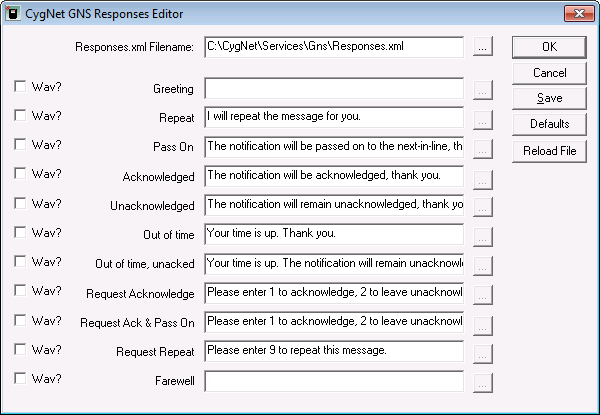
The CygNet GNS Responses Editor dialog box appears with current notification responses:
When you open the utility, the Responses.xml Filename appears at the top of the dialog box. If not, browse to the Responses.xml file in the GNS directory. After you save your settings, the Responses.xml file will be presented the next time you open up the GNS Responses Editor. (If you want, you can edit the XML file directly, but the dialog box is easier to use, and is necessary if you want to select corresponding WAV sound files.)
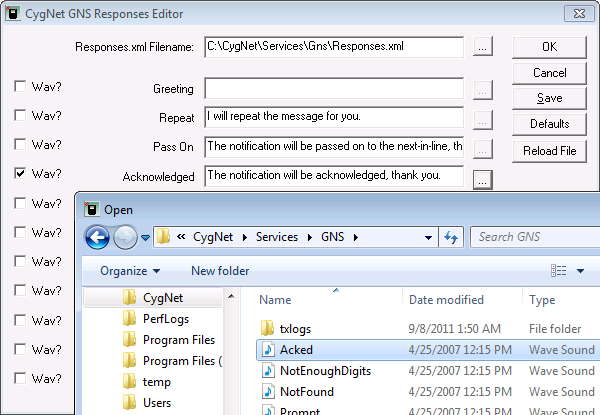
To enable a WAV file to be played as a general notification message, click the check box to the left of the notification text. Click … to find the WAV file. While CygNet Software provides some sample WAV files, you will need to create your own WAV sound notifications and store them in the GNS directory.
Note: Storing them in the GNS directory makes them easier to find and lessens the chance of overwriting a different, but similar-named file in another directory.
The following image shows the GNS Responses Editor with an Enabled WAV file (Acked.wav) and its corresponding notification text.
The following options are available for saving or modifying a Responses.xml file:
| Button | Description |
|---|---|
|
OK |
Click to exit and to save changes. |
|
Cancel |
Click to exit and to not save any changes. |
|
Save |
Click to save your settings before you exit. |
|
Defaults |
Click to return to the shipped default version. |
|
Reload File |
Click to revert back to the previous file settings. |

|
|
|

